![Accentra logo for white background-4.png]](https://help.accentra.co.uk/hs-fs/hubfs/Accentra%20logo%20for%20white%20background-4.png?height=40&name=Accentra%20logo%20for%20white%20background-4.png)
Step 1: Click on the “P11 list” button in the upper right corner.

Step 2: Click on the X button under the Action column in the Payslips screen for the relevant employee you wish to reverse payment for.
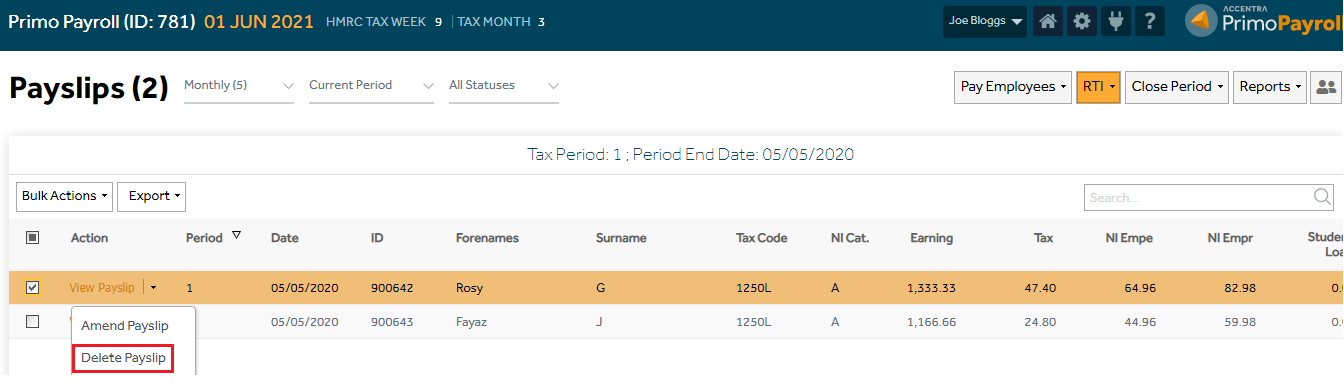
Step 3: Confirm your action when prompted.
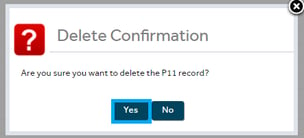
You will see the below pop-up message appear confirming the P11 has been reversed successfully.

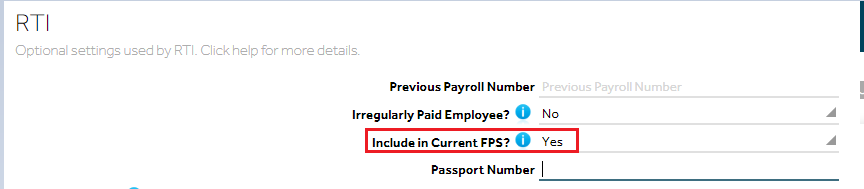
Step 4: If the FPS has already been completed for this employee prior to the P11 deletion, it is necessary to submit a correction to the earlier submission. Make sure that the “Include employee in current FPS” setting on the employee record is set to “Yes”.
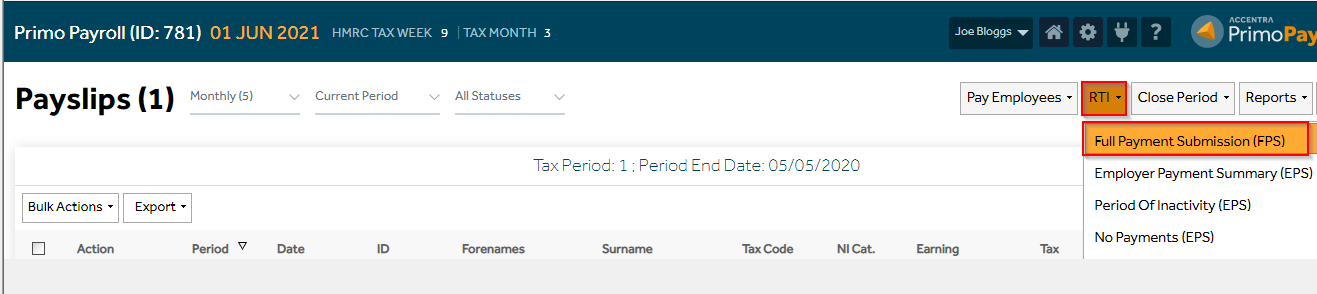
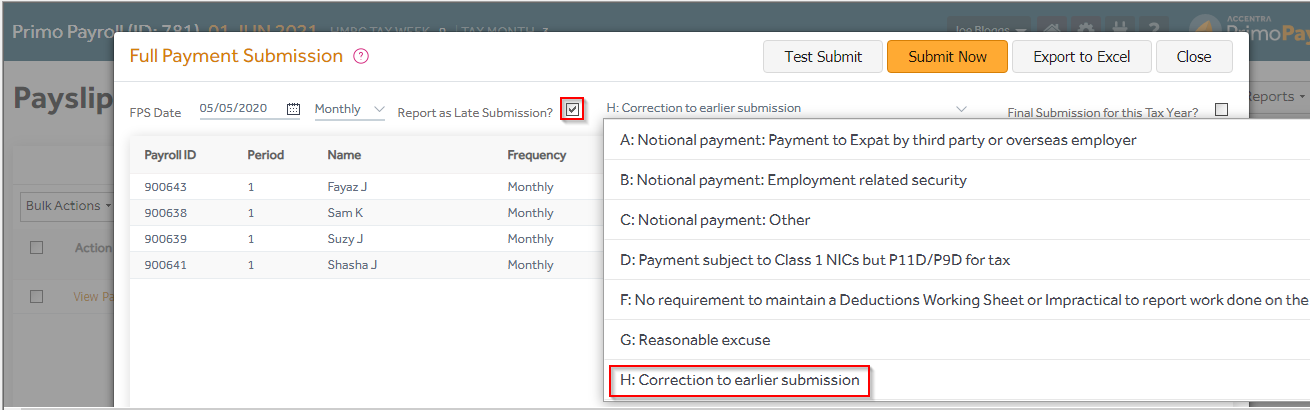
Step 5: Under the RTI dropdown menu open the “Full Payment Submission”, tick the “Report as late submission” box, select “H: Correction to earlier submission” and click on “Submit FPS”.