![Accentra logo for white background-4.png]](https://help.accentra.co.uk/hs-fs/hubfs/Accentra%20logo%20for%20white%20background-4.png?height=40&name=Accentra%20logo%20for%20white%20background-4.png)
-----------------------------------------------------------------------------------------------------------------
Contents:
1. Creating an Employee Record Manually
2. HMRC Notice Updates
2.2 Payroll process
2.2.1 Employees on fixed hours/annual salary
2.3 Employees on variable hours
2.3.1 Group Entry
2.3.2 Import Period Inputs
2.3.3 Control Report
2.3.4 Generate Payment File
2.3.5 Confirm Payment
2.3.6 Period Rollback
2.3.7 FPS Resubmission
2.3.8 Close Period
2.3.9 End of Year
-----------------------------------------------------------------------------------------------------------------
1. Creating Employee Record Manually
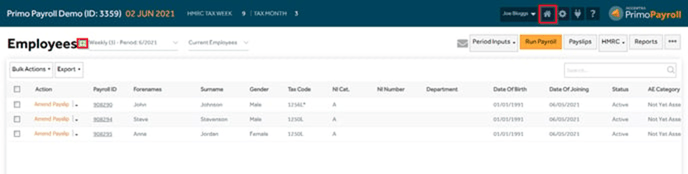
When you log into the company, you’ll see the ‘Employee List’ screen by default. If not, click the 'Home' icon and press the 'Plus' icon to create a new employee.
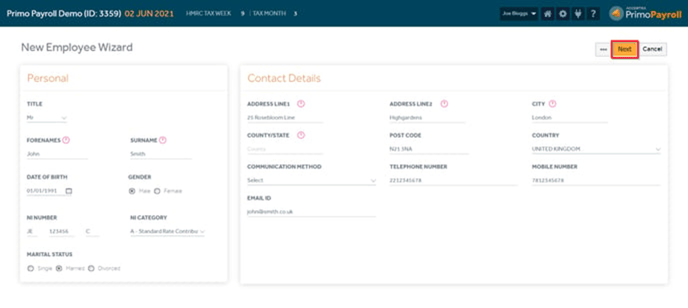
Fill in the employee details and click ‘Next’. Before proceeding to the next screen, the software will validate whether all the mandatory fields are filled in and notify you if something is missing.
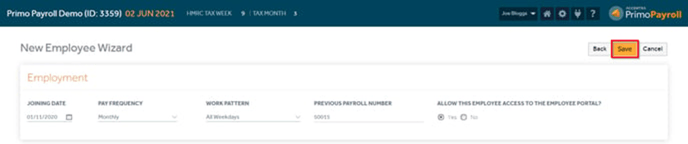
You need to specify the pay frequency, joining date, and the previous payroll number. You can select a predefined work pattern in the employment section. Additionally, you can allow the employee to access their ‘Employee Portal’ if required.

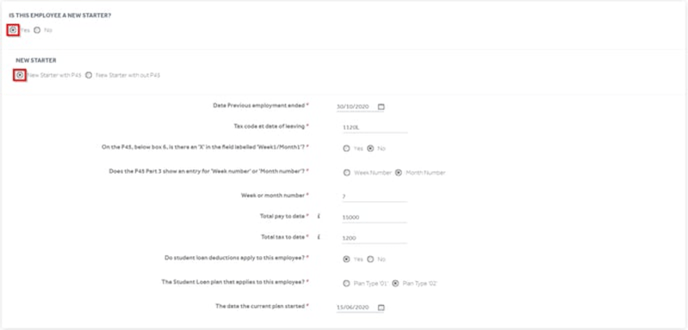
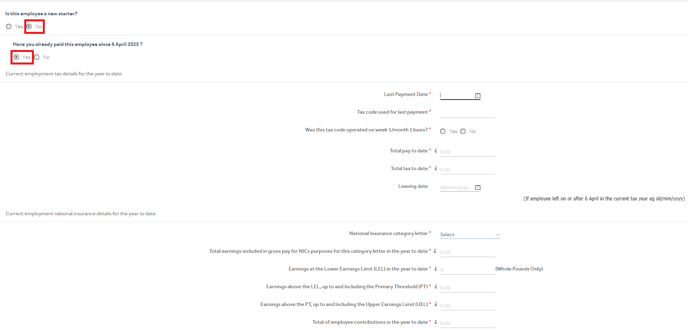
Specify whether the new employee is a ‘New Starter’ and if a P45 is available. If you have the new employee’s P45, tick ‘New Starter with P45’ and fill in with the information provided in the P45.
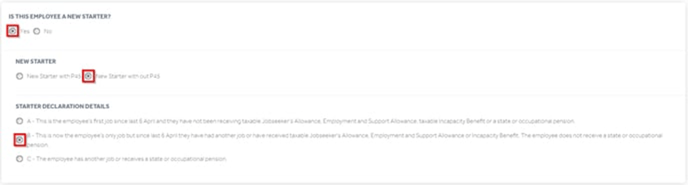
If you do not have your employee’s P45, tick ‘New Starter without P45’ and select the applicable starter declaration type.
If you are moving to Primo from some other software, for already existing employees, YTD figures can be entered while creating a new record in Primo. By ticking the box as ‘Yes’ for employee paid since 6th April system will open a new list for the YTD figures facility.
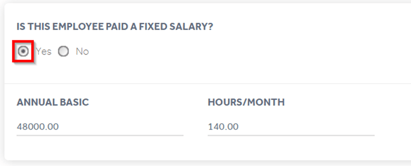
Fill in the employee’s salary details. You’ll also be able to amend this later.
Specify the holiday pay accrual method for the automated holiday entitlement calculation. You can choose between the fixed annual days’ entitlement or holiday calculation based on hours worked. If you don’t want to process a holiday pay, then set the ‘Skip Holiday Pay?’ to ‘Yes’.

Enter the employee’s bank details if you will be paying through bank transfers.

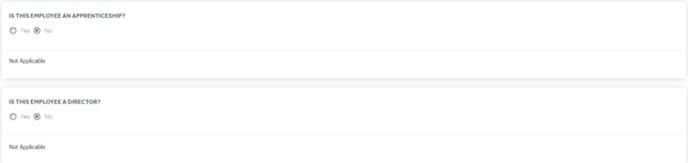
Select whether the new employee is an apprentice or a director.
Click ‘Save’ in the upper right corner to finish. This will create the employee record. You will see a pop-up message confirming this.

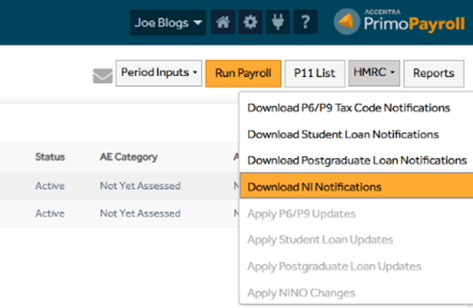
2. HMRC Notice Updates
Employees -> HMRC -> Download Notice -> Apply Notice
2. 2 Payroll process
2.2.1 Employees on fixed hours/annual salary
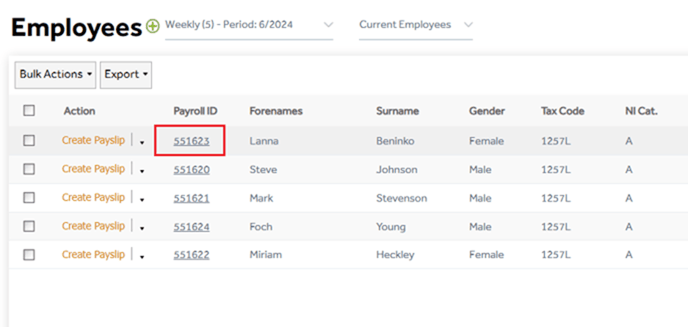
To open the Employee record, click on Payroll ID.
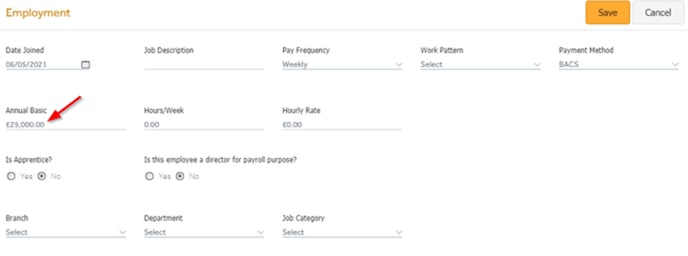
If you pay your employees an ‘Annual Basic’ or hourly rate, mention this in the ‘Employment’ section in the employee record and ‘Save’ it.
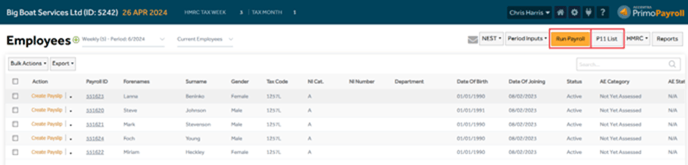
When you wish to process the payroll, from the Employee List screen, select the required employees and click ‘Run Payroll’. You can then check the P11s processed by clicking the ‘P11’ button.
2.3 Employees on variable hours
If your employees work different hours every period, then you can enter the values in the ‘Payslip Entry’ screen if you’re processing for a few employees or in the ‘Group Entry’ for processing multiple employees. You can also upload the values using an Excel file. Once you have entered the values, click ‘Save’ to calculate the net pay.
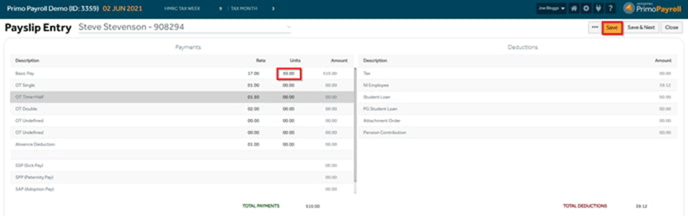
The software will calculate the tax, NI and Pension contributions based on the values entered and generate the payslip. You can view the payslip by clicking the ‘View Payslip’ button in the ‘More’ menu.
2.3.1 Group Entry
From the ‘Period Inputs’ dropdown, click the ‘Group Entry’ and select the employees you wish to process the payroll for.
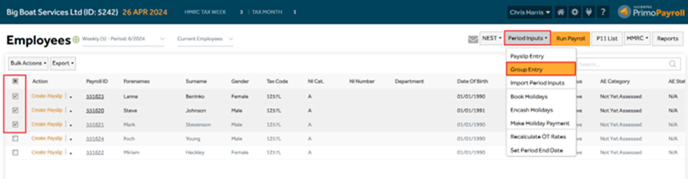
In the payment rates tab, you can fill in the hours worked for that period if this isn’t already specified in the employee record.

The Payment and deduction codes you’ve set up will appear in their respective tabs here. If you wish to hide a particular payment or deduction code, go to the ‘Columns’ button and deselect the code.
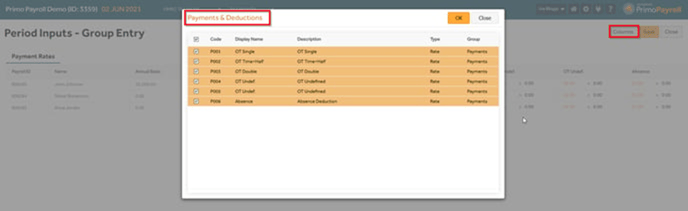
After you’ve filled in the values, click ‘Save’. If you wish to run the payroll immediately, you can click ‘Yes’ to the pop-up message or click ‘No’ if you wish to run the payroll later.
2.3.2 Import Period Inputs
Click ‘Import Period Inputs’ from the ‘Period Inputs’ dropdown and upload your import file by clicking ‘Browse’, enter the worksheet name and click ‘Load’. When you see the values loaded, cross-check once again and click ‘Import’.

2.3.3 Control Report
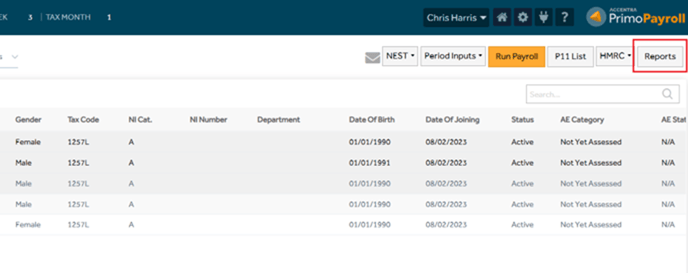
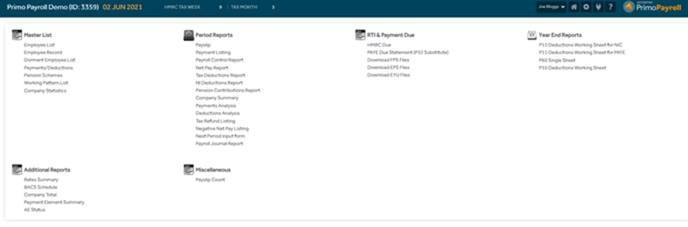
Once you’ve run the payroll, you can download the control report from Reports → Period Reports → Payroll Control Report. You can download the report in PDF or Excel format.
2.3.4 Generate Payment File
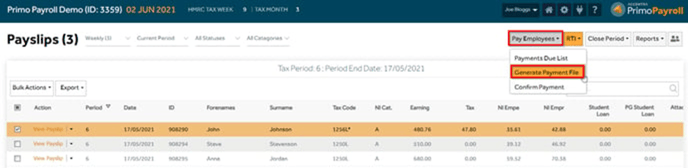
After the payroll has been processed, you can generate the payment file (BACS) and use it through your banking software to pay your employees. Click the ‘Payslips’ button and under the ‘Pay Employees’, click Generate Payment File.

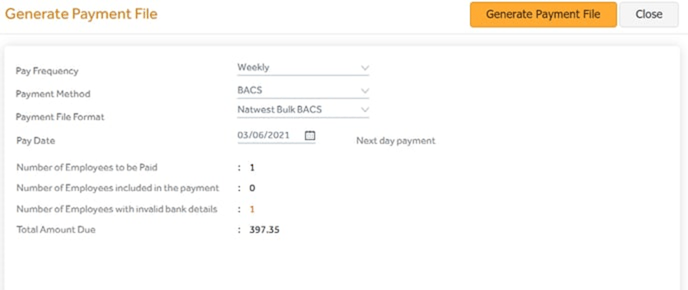
Select the required Pay Frequency, Payment Method, Payment File Format & the Pay Date and verify the figures shown, and if you’re OK, click the ‘Generate Payment File’ button. This will generate the payment file.
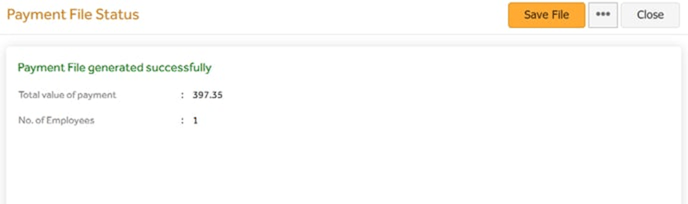
The screen will show the total number of employees you’re paying and the total payment amount. You can save the Payment File to the desired location on your PC.
2.3.5 Confirm Payment
After making the payments to your employees, you’re required to confirm this by clicking the ‘Confirm Payment’ under the Pay Employees dropdown.
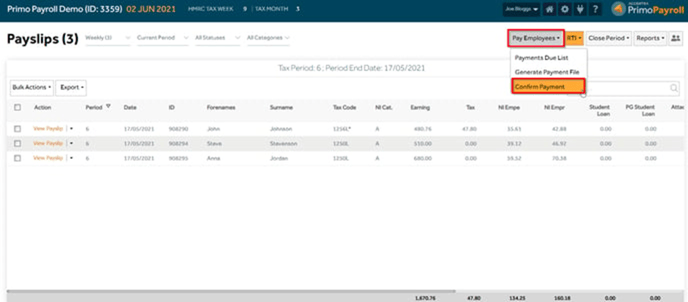
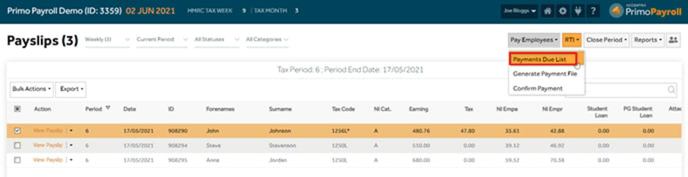
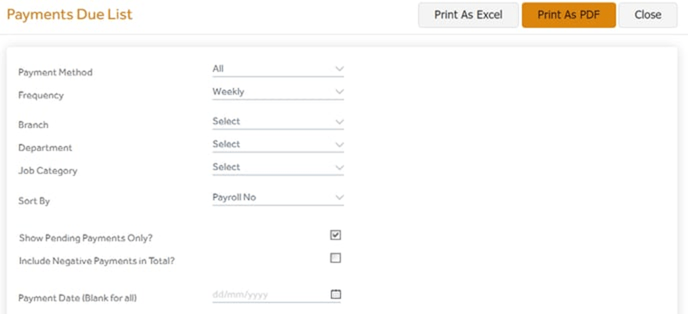
You will notice the change in colour of the employees whose payments have been confirmed. You can also export the pending payments by clicking the ‘Payments Due List’.
2.3.6 Period Rollback
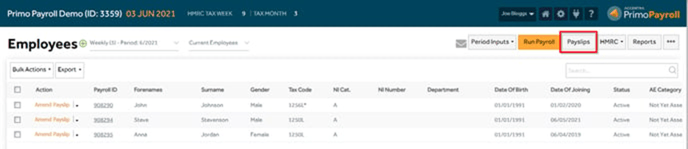
Go to the ‘Payslips’ screen by clicking the 'Payslips' button as highlighted below.
Click the ‘More’ options and select ‘Rollback Period’.
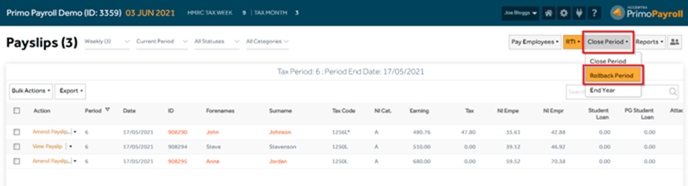
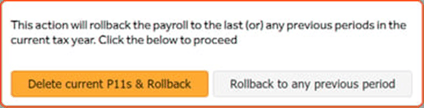
A pop-up window will appear asking whether you wish to roll back to the last period or any previous period in the current tax year. Select the required option.
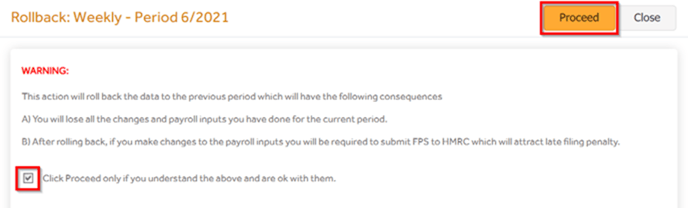
Note that late filing of FPS may result in a penalty. If you still wish to proceed with the rollback, tick the checkbox and click ‘Proceed’.
Delete current P11 & Rollback:
Any data entered in the current period will be lost.
You will receive a confirmation message that the period has been rolled back successfully.
Rollback to any previous period:
If you wish to roll back to any previous period, you will be asked to specify the exact period and pay frequency you wish to roll back.
After making amendments to the period, kindly resubmit the FPS and proceed to close the period. You will be prompted to select the period you wish to roll forward to. After selecting the period number, click ‘Proceed’ to move to the selected period.
You will receive a confirmation pop-up message that the period has been rolled forward successfully.
2.3.7 FPS Resubmission
Once you have made the payroll amendments, you’ll need to resubmit the FPS to the HMRC.
Payslips screen → RTI dropdown → Full Payment Submission (FPS).
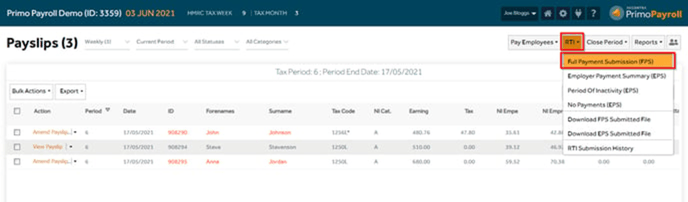
Tick the ‘Report as Late Submission?’ checkbox and select the late filing reason as ‘H – Correction to earlier submission’ and click ‘Submit Now’. Once you’ve submitted the FPS, you can close the period.
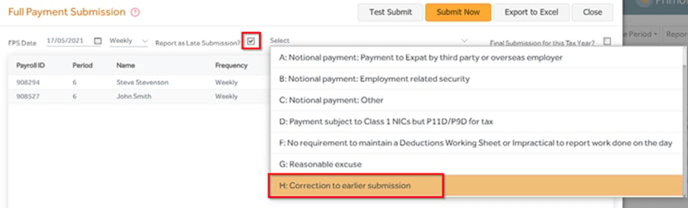
Make sure that the payments have been confirmed and the FPS (Full Payment Submission) is done for all employees paid in the relevant pay period.
2.3.8 Close Period
Go to the ‘P11 list’ screen and click ‘Close Period’
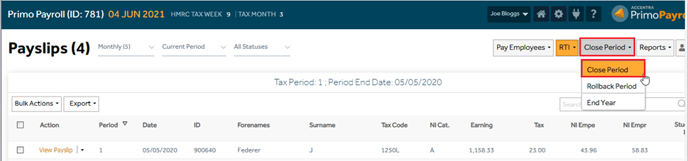
Select the payroll frequency you wish to close the period for. Cross-check the Tax, NI and Net pay figures shown on the screen with the figures on the payroll control report and if you’re OK, tick the checkboxes.
If the payroll company is set to submit the pension contributions to the pension provider, the payroll will submit the pension contributions when the Close Period is done. So, make sure that the shown pension submission start & end dates match with the dates the pension provider is expecting. Please note that the pension provider will not accept the pension files with incorrect dates.
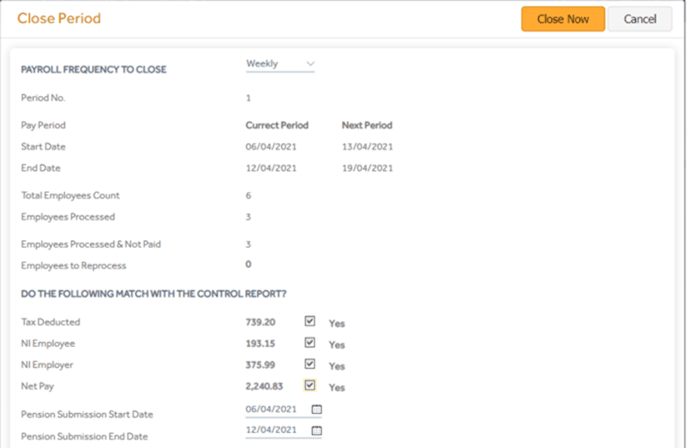
Once you’ve checked all the information on the screen, click ‘Close Now’. You will receive a confirmation message that the period has been closed successfully.
2.3.9 End of Year
Go to the ‘P11 list’ screen and click ‘End year’
